
Price List is a feature in Tally where you can fix the rate of an item for different groups or occasions.
In business, you may want to sell the same item at different prices to different types of customers like wholesalers, retailers, or regular customers.
TallyPrime offers an excellent feature to manage different pricing for various customers, such as Distributors, Wholesalers, Retailers, and others. This is done using Price Lists and Price Levels. With this feature, businesses can streamline their sales process and automatically apply the correct price for each category of customers.
- Price List: A predefined list of prices for items based on different categories (e.g., distributor price, wholesale price, retail price).
- Price Level: Categories or groups created for different customer types (e.g., Distributor, Wholesaler, Retailer).
When you associate a price level with a customer, TallyPrime automatically applies the corresponding prices during sales transactions.
Why Use Price List and Price Level?
- Efficient Pricing: Automatically apply the correct price for different customers.
- Time-Saving: No need to manually calculate or apply discounts for each sale.
- Error-Free Billing: Reduces the chances of pricing errors in sales invoices.
| Price Level | For Whom |
| Wholesale | Wholesalers |
| Retail | Retailers |
| Customer | End Customers |
Example: Price List for “Smartphone”
| Price Level | Item | Rate |
| Wholesale | Smartphone | ₹12,000 |
| Retail | Smartphone | ₹13,500 |
| Customer | Smartphone | ₹15,000 |
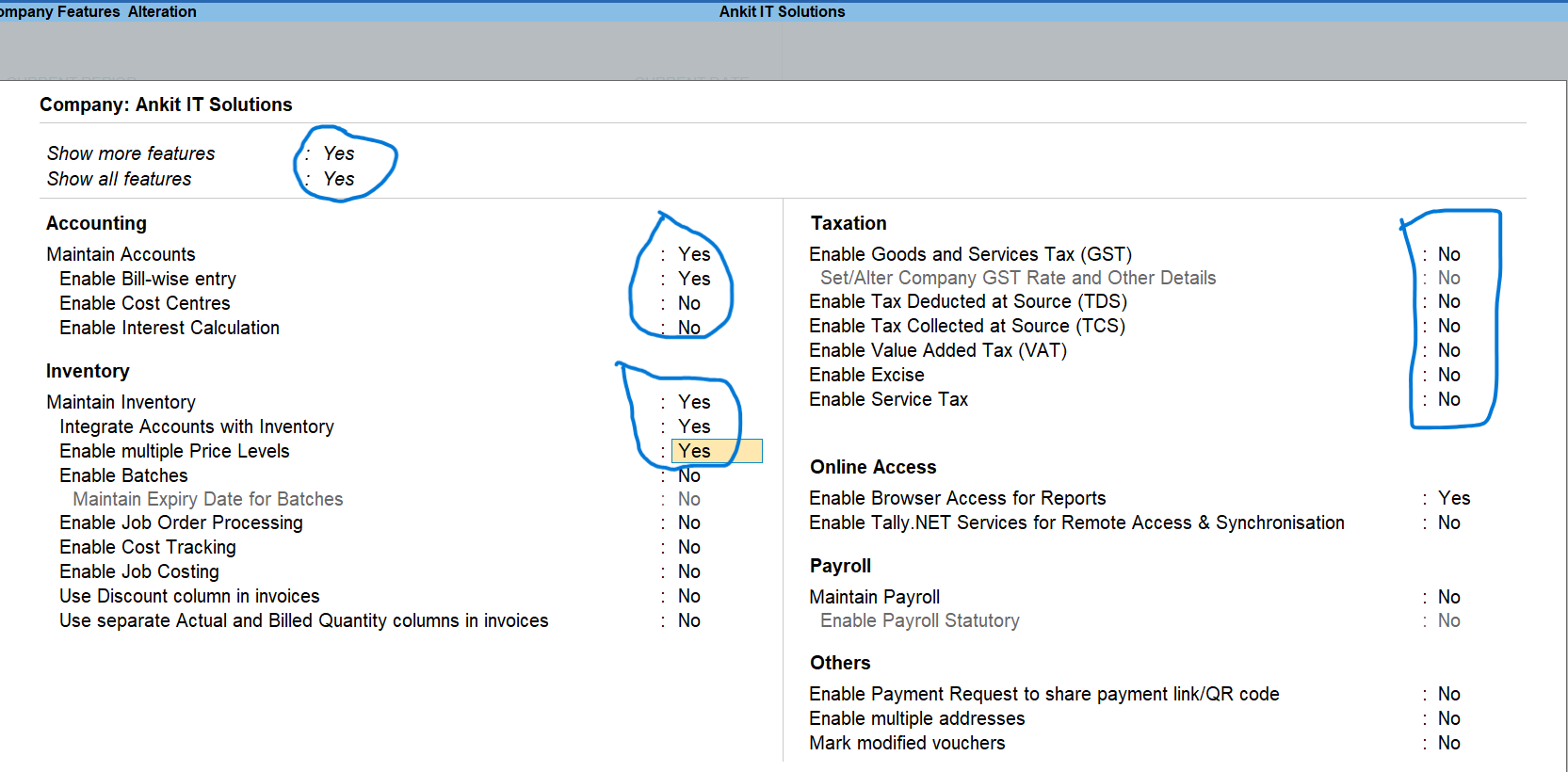
Enable Multiple Price Level by Pressing F11 Key
Click on Create

Create Following Stock Group

Click on Price Level

Create Following Levels

Click on Price List (Stock Group) to Setup Price

Fill Information for Distributor Price Level


Fill Information related to Item qty and rate or discount if any
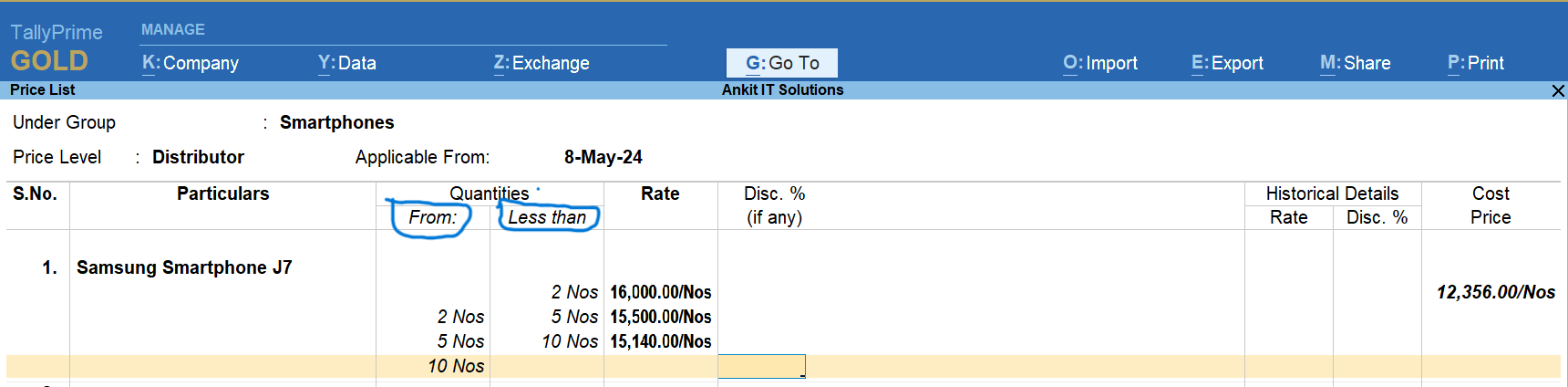
Fill Information for Retailer Price Level

Fill Information related to Item qty and rate or discount if any

Fill Information for Whole Saller Price Level

Fill Information related to Item qty and rate or discount if any


Sale Stock Item with Distributer Price Level
Here You will see the item rate will automatically appear.
Gateway Of Tally >> Vouchers >> Sales


Sale Stock Item with Whole Saller Price Level
Here You will see the item rate will automatically appear.
Gateway Of Tally >> Vouchers >> Sales
